Git and Gitlab - Beginners, working alone⚓
Discover Gitlab⚓
- Log in on https://gitlab-df.imt-atlantique.fr
- Create a project, name it as you wish
- Choose to add a README.md file
- Get the clone HTTPS URL
All the necessary information is available here: Gitlab.
Discover Git⚓
The challenge here will be to familiarize yourself with the concepts of Git by using the previously created project, and to address the possibilities of documenting a project.
- Clone the Gitlab project repository
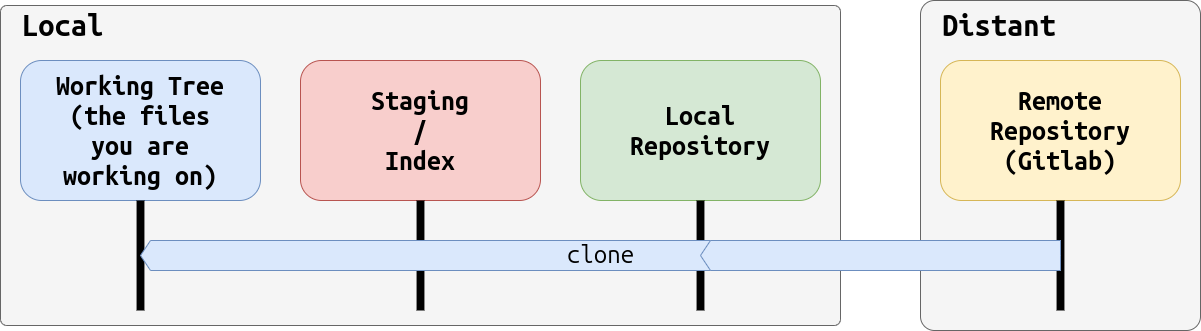
- Modify the
README.mdfile by deleting/modifying/adding lines with VScode - See what happens (with
git status) - Add these modifications to the index
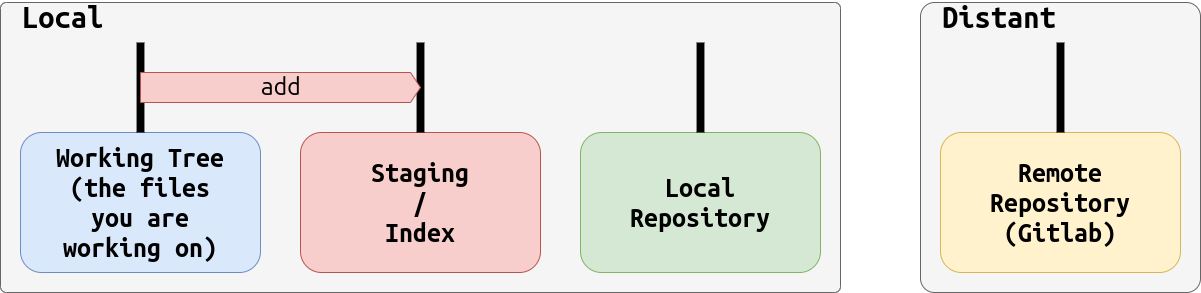
- See what happens
-
Create a new commented version including these modifications
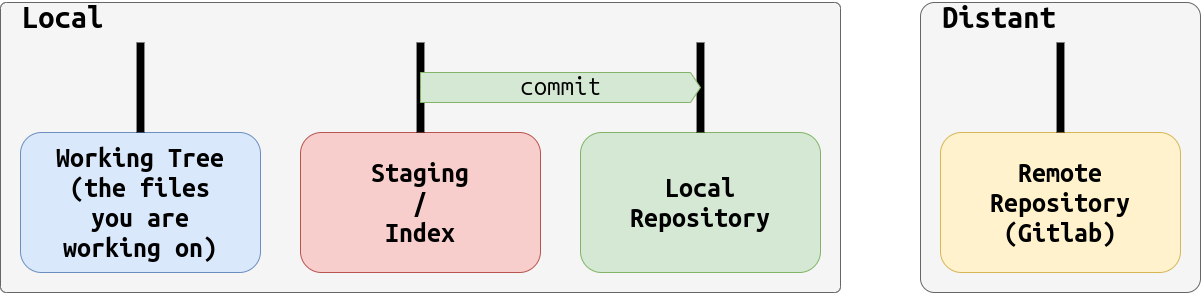
The
commitcommand adds a commit to the history of the local repository:%%{init: { 'logLevel': 'debug', 'theme': 'base', 'gitGraph': {'showBranches': true, 'showCommitLabel':true,'mainBranchName': 'GitlabRepo'}} }%% gitGraph: commit id: "Initial" branch Alice commit id: "Modif Readme" -
See what happens
-
Propagate these modifications to the remote repository
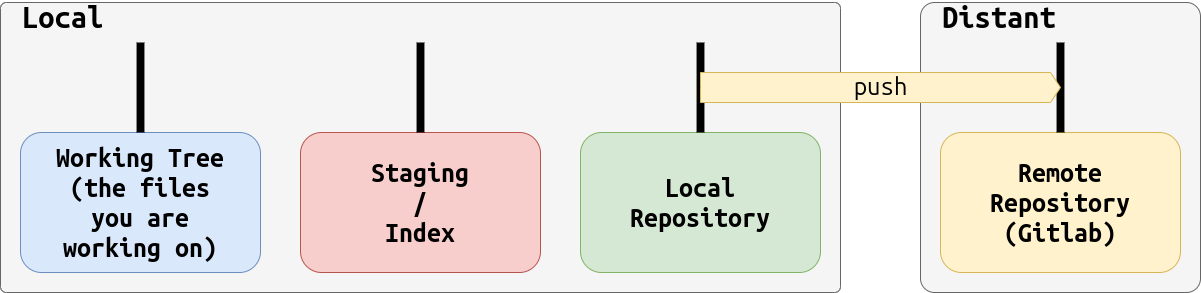
The
pushcommand propagate the commit to the gitlab remote repository:
9. See what happens%%{init: { 'logLevel': 'debug', 'theme': 'base', 'gitGraph': {'showBranches': true, 'showCommitLabel':true,'mainBranchName': 'GitlabRepo'}} }%% gitGraph: commit id: "Initial" branch Alice commit id: "Modif Readme" checkout GitlabRepo merge Alice
All the necessary information is available here: Git.
Branches on Git⚓
The challenge here is to understand how to develop software using git. You will also discover the concept of branches in Git. To that end, you will work on a simple python project: a smart Todo Command Line Interface (CLI).
Concept⚓
Up until that point, you have worked with a single succession of commits, or branch. This is an ordered line of commits which builds on each other to form the current version of your repository. See Branching for more details.
By convention, the first and main branch created on a repository is called main or master.
You will see in this succession, you can create multiple branches on a repository, separating
from the main one (to work separately), and potentially merging them to combine their line of
commits into a single output version.
Project⚓
For the remainder of this formation, you will work on a project to build a simple smart todo list application with a command line interface (CLI).
Here is the starting point for this project, a single file called main.py:
1 2 3 4 5 6 7 8 9 10 11 12 13 14 15 16 | |
-
You can start by creating this starting file
main.pyinside your project and run it to check how it works:1python main.py -
Create a new branch called
dev(see Create a Branch)As you may have noticed, the new branch is created but you are still on the
mainbranch. You can use the commandgit branchto check on which branch you are (it will be marked with a star and coloured).
1. Go on the newly created%%{init: { 'logLevel': 'debug', 'theme': 'base', 'gitGraph': {'showBranches': true, 'showCommitLabel':true}} }%% gitGraph: commit id: "Initial Commit" commit id: "Modif1" type: HIGHLIGHT tag: "HEAD" branch devdevbranch (See Change branch)Reminder: You can check you are on the right branch with the command
git branch -
Add the starting file (named
main.py) to your local repository (reminder: add - commit)%%{init: { 'logLevel': 'debug', 'theme': 'base', 'gitGraph': {'showBranches': true, 'showCommitLabel':true}} }%% gitGraph: commit id: "Initial Commit" commit id: "Modif1" branch dev commit id: "Add file" type: HIGHLIGHT tag: "HEAD" -
Go back to the previous branch
mainWhere is your main.py file? When you change branch, git automatically set the state of your tracked files (all files added with git) so they match the state of the branch. As
main.pywas only added to the branchdevbranch for now, it is only visible on that branch (at the moment).%%{init: { 'logLevel': 'debug', 'theme': 'base', 'gitGraph': {'showBranches': true, 'showCommitLabel':true}} }%% gitGraph: commit id: "Initial Commit" commit id: "Modif1" type: HIGHLIGHT tag: "HEAD" branch dev commit id: "Add file"To convince yourself, you can quickly go to the
devbranch to see yourmain.pyfile still exists. -
From the
mainbranch, make a small change on theREADME.mdfile and commit it.%%{init: { 'logLevel': 'debug', 'theme': 'base', 'gitGraph': {'showBranches': true, 'showCommitLabel':true}} }%% gitGraph: commit id: "Initial Commit" commit id: "Modif1" branch dev commit id: "Add file" checkout main commit id: "Modify Readme" type: HIGHLIGHT tag: "HEAD" -
From the
mainbranch, merge the commits of the branchdevso its changes are added (see Merge branches).%%{init: { 'logLevel': 'debug', 'theme': 'base', 'gitGraph': {'showBranches': true, 'showCommitLabel':true}} }%% gitGraph: commit id: "Initial Commit" commit id: "Modif1" branch dev commit id: "Add file" checkout main commit id: "Modify Readme" merge dev id: "Merge dev branch" type: HIGHLIGHT tag: "HEAD"You should now see the
main.pyfile. -
Push your changes on the remote Gitlab repository
You have essentially developed a working application. Such software projects are often split into a comprehensive list of development tasks (adding a new feature, fix a bug, etc). This allows for a gradual and organized development process, and an easier collaboration with tasks that can be distributed amongst your colleagues.
-
Complete the following task on the project
Task – Add a New Todo
Description: Add functionality to append a new todo to the list and display it.
Tip
Code tips:
- Use
input()to get the new todo - Use
list.append()to add the todo - Print the updated list using the existing
whileloop
Workflow tips: use the complete workflow you have seen up until then (branch - develop - add - commit - merge)
Solution - Click to expand
Add a new
elifcase for the "add" command with following code in it:1 2 3 4 5
new_todo = input("Enter a new task: ") todos.append(new_todo) for i in range(len(todos)): print(str(i + 1) + ". " + todos[i]) - Use