Git⚓
Git is a free and open source distributed version control system designed to handle everything from small to very large projects with speed and efficiency.
Git is easy to learn and has a tiny footprint with lightning fast performance. It outclasses SCM tools like Subversion, CVS, Perforce, and ClearCase with features like cheap local branching, convenient staging areas, and multiple workflows.
(source: https://git-scm.com/)
Installation⚓
Windows 10/11⚓
The most direct way to install Git on Windows 10/11, is to get the "Git for windows" 64 bits installer : https://git-scm.com/downloads/win. Then install it.
MacOS⚓
Dedicated page for MacOS on the Git website: https://git-scm.com/downloads/mac
Linux⚓
Ubuntu/Debian⚓
Ouvrir un terminal Ctrl+Alt+T puis copier/coller les commandes :
1 2 | |
Fedora/Red Hat⚓
1 2 | |
Simplified workflow overview⚓
The goal of this workflow is to allow users to work on a common project: sharing, and ensure that all previous work is still available at all time: versioning
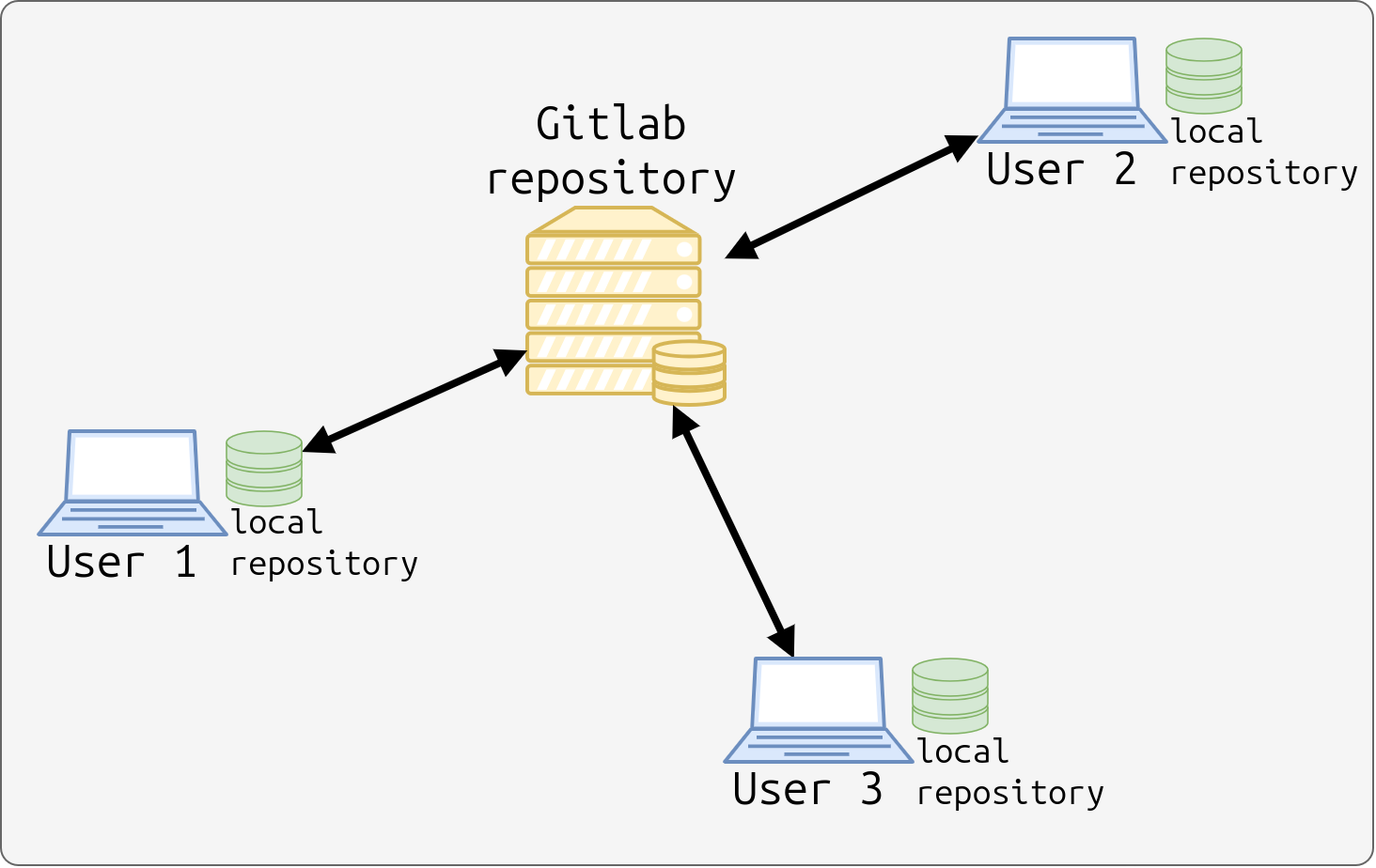
- Create a Project in Gitlab. A distant Git repository is created as well during the project creation
Clonethe distant project on your computer- Other users clone the distant repository as well to work on it in parallel
- Users can validate their work locally (
add), then create a version (commit), then send their new version to the distant repository (push), or create branches (branch) when needed to isolate their work - Other users can get those modifications (
pull,fetch) to update their local repository and get others work. - Locally solve conflicts when two users have done incompatible modifications.
Zones⚓
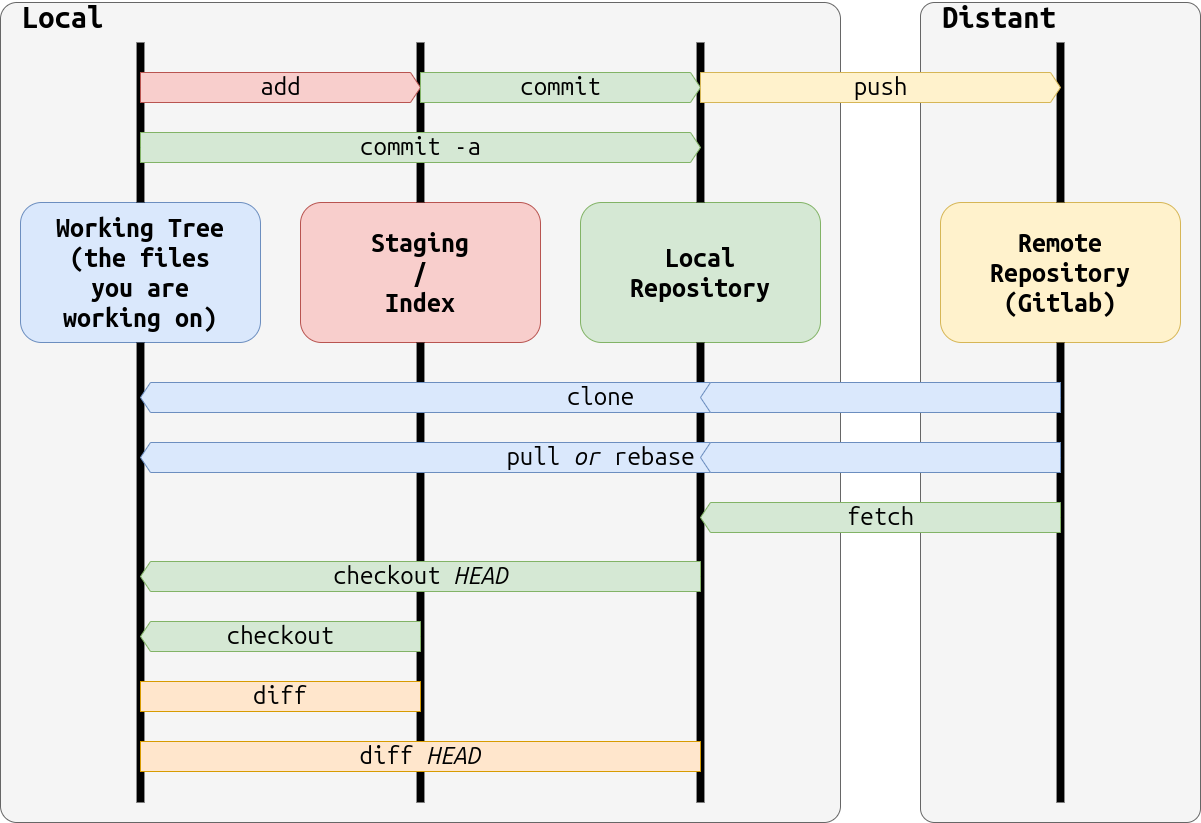
- The Working Tree is the local folder containing the files you are working on, such as source codes, documentation, images and so on.
- The Staging (also referred as the Index) contains all the modifications you want to add to the repository.
- The Local Repository contains all the versions of your validated modifications. Each version correspond to a Commit
- The Distant Repository is another Git repository, often hosted on a dedicated web platform (Github, Gitlab...). It is used by all users working on a common project.
Local configuration⚓
Some mandatory minimal configuration is needed to use Git on your computer: setting your name and your email address:
1 2 | |
Display your configuration :
1 | |
For more detailed documentation: https://git-scm.com/book/en/v2/Getting-Started-First-Time-Git-Setup
Basic Commands⚓
Clone a repository⚓
To clone a remote repository, use the command:
1 | |
For more detailed documentation: https://git-scm.com/docs/git-clone
See status⚓
To see the current status of your Git repository, use the command:
1 | |
It will show you the following information:
- The branch on which you are (see later in branching)
- The synchronization status with the remote branch
- The changes staged for commit (i.e every changes you added in the index/stage with git add)
- The changes not staged for commit
- The untracked files (never added to any commit of the history)
Tip
This command can be done at any point during you normal git process. As it does not modify the repository and give you crucial information on the repository current state, you can never overdo it.
For more detailed documentation: https://git-scm.com/docs/git-status
Add modifications⚓
To add modification in the index/stage, use the command:
1 | |
For more detailed documentation: https://git-scm.com/docs/git-add
Commit with a message⚓
To create a commit (version) after adding modifications to the index, use the command:
1 | |
The -m option stands for "message"
Note
A commit message is very important. It should indicates what this commit changes on the project, in a clear an concise way
For more detailed documentation: https://git-scm.com/docs/git-commit
Push to Remote⚓
To send the modifications (i.e. the commits), use the command:
1 | |
|
Parameter |
Description |
|
|
Distant repository, visible with |
|
|
Name of the branch you want to push modification |
For more detailed documentation: https://git-scm.com/docs/git-push
Syncing and Updating⚓
In case another developer pushed modifications on the distant repository, it is necessary to get these modifications locally before push local modifications. There is two ways to do it:
- with
fetch: it will update the local repository, but not the working directory (i.e. the files). To then update the working directory,mergeis used. - with
pull: it will update the local repository and the working directory. It may induce conflicts that the must be resolved locally.
For more detailed documentation about the difference: https://www.theserverside.com/blog/Coffee-Talk-Java-News-Stories-and-Opinions/Git-pull-vs-fetch-Whats-the-difference
Fetch⚓
To fetch, use the command:
1 2 | |
For more detailed documentation:
Pull⚓
To pull, use the command:
1 | |
Tip
It is advised to:
pull/fetch+mergebefore doing modifications or apushcommitbeforepull/fetch+merge
For more detailed documentation: https://git-scm.com/docs/git-pull
Initializing and Connecting Repositories⚓
Create a local repository⚓
You can easily create a Git repository anywhere (except in an existing one) on your computer with the command:
1 2 | |
For more detailed documentation: https://git-scm.com/docs/git-init
Adding a remote (distant) repository⚓
When your init a repository, you cannot, as is, interact with a distant repository, for example on Gitlab. To add a remote repository, use the command:
1 | |
A local repository can have several remote repository. To list them with detailed information, use the command:
1 | |
For more detailed documentation: https://git-scm.com/docs/git-remote
Merge and Conflict Resolution⚓
merge is used to merge two different histories. Here we will cover classic conflicts.
Sometimes, conflicts happen. It can be because the commit you want to push to the remote repository is behind its last commit without conflict inside the code itself. The pull to get the last commit will automatically "fast forward" and merge the modification between the last distant commit and your commit. The you can push.
Sometimes, the conflict is inside the code itself. Two contributors made modifications on the same file at the same lines. The pull to get the last commit will signal that there is a conflict of this type, but will still 'fetch' the remote commit into your local repository, but without modifying your working directory.
For more detailed documentation: https://git-scm.com/docs/git-merge
pull often, then push often
The more often you pull, the less your local repository history diverges from the original repository when you push, and the fewer conflicts you have to resolve.
Tip
Talk to your colleague to avoid conflicts. The better you share tasks, the easier it is to manage git repositories.
The following Git commit history show how commit made by different users are synchronized using the Gitlab repository.
%%{init: { 'logLevel': 'debug', 'theme': 'base', 'gitGraph': {'showBranches': true, 'showCommitLabel':true,'mainBranchName': 'GitlabRepo'}} }%%
gitGraph:
   commit id: "Initial"
   branch Alice
   branch Bob
   commit id: "Modif1"
   checkout Alice
   commit id: "Modif2"
   checkout GitlabRepo
   merge Bob tag: "push Modif1"
   checkout Alice
   merge GitlabRepo tag:"merge Modif1"
   checkout GitlabRepo
   merge Alice tag: "push Modif2"
   checkout Bob
   commit id: "Modif3"
   merge GitlabRepo tag:"merge Modif2"
   checkout GitlabRepo
   merge Bob tag: "push Modif3"
   checkout Alice
   merge GitlabRepo tag:"merge Modif3"
One user must merge into his local repository the commit pushed in the meantime to the origin repository by other users before being able to push his own commits:

Typical message from git when trying to push in this situation:
1 2 3 4 5 6 7 8 9 | |
Then, when doing the pull, you will have to make a decision:
1 2 3 4 5 6 7 8 9 10 11 12 13 14 15 16 17 18 19 20 21 | |
Most of the time (and for this little documentation), the solution is to merge.
If there are no conflicts in the files (i.e two commits that modify the same lines in the same file):
1 2 3 4 | |
If there are conflicts during the merge :
1 2 3 4 | |
You have to resolve the conflicts manually. Git cannot know what to do with your code. But it will tell you where there are conflicts and highlight them directly in your code:
1 2 3 4 5 | |
Info
All the conflicts are resolved locally. Git impose you to synchronize your local repository history with the remote one before doing a push
Once you resolved the conflicts, a classic add, commit and push should do the trick.
Branching⚓
Until now, we presented a simple workflow where all users are working on the same
branch of the code (e.g called main or master). That branch is the succession of commits they made, which are all appended together to get the current version of the code at any time.
You can however decide to create multiple branches, each with their respective
commit histories and hence code version. Though it may appear counter-intuitive at first glance, it is often preferrable to create a new branch on which you will
be the only one to work on, generally for the purpose of developping a new feature
or a bugfix, as you won't encounter any synchronization issue.
This allows you to work quickly on your development, reducing the hurdle of constant synchronization with the remote adding potential conflicts, and only integrate your changes in the main/master branch in a completed state.
Note
This section merely presents the git commands you can use but does not extend to the question of when/why to use each of those. This is done in the following guide on Collaborative Git Workflows when discussing Merging Strategies.
Create a Branch⚓
To create a new branch, use the command:
1 | |
This Git commit history shows the creation of a branch named feature from the main branch:
%%{init: { 'logLevel': 'debug', 'theme': 'base', 'gitGraph': {'showBranches': true, 'showCommitLabel':true}} }%%
gitGraph:
   commit id: "Initial"
   commit id: "Modif1"
   commit id: "Modif2" type: HIGHLIGHT tag: "HEAD"
   branch feature
   commit id: "feature: Modif1"
   commit id: "feature: Modif2"
For more detailed documentation: https://git-scm.com/docs/git-branch
Change branch⚓
The former command creates a new local branch (unsynced), but don't place you on it. To change the current version of your repository, you can use the command:
1 | |
You can see the checkout command in action, to go on the newly created feature branch from last example:
%%{init: { 'logLevel': 'debug', 'theme': 'base', 'gitGraph': {'showBranches': true, 'showCommitLabel':true}} }%%
gitGraph:
   commit id: "Initial"
   commit id: "Modif1"
   commit id: "Modif2"
   branch feature
   commit id: "feature: Modif1"
   commit id: "feature: Modif2" type: HIGHLIGHT tag: "HEAD"
Tip
You can create a new branch and place yourself on it in one command:
1 | |
Note
The checkout command can do many more operations that change the current branch.
You can also checkout a particular commit (given its SHA code).
For more detailed documentation: https://git-scm.com/docs/git-checkout
Merge branches⚓
This command merges the given branch inside your current branch:
1 | |
There are multiple methods for this command to merge two branches:
- fast-forward: the command will try to reconcile the branches' histories by collapsing the given branch commits inside the current branch, deleting all traces of the branching in the process
- three-way merge: the command will create a merge commit reconciling both branches, this commit will depend on both branches latest commits
Let's show a fast-forward merge of the feature branch on the main branch in last example:
%%{init: { 'logLevel': 'debug', 'theme': 'base', 'gitGraph': {'showBranches': true, 'showCommitLabel':true}} }%%
gitGraph:
   commit id: "Initial"
   commit id: "Modif1"
   commit id: "Modif2"
   commit id: "feature: Modif1"
commit id: "feature: Modif2" type: HIGHLIGHT tag: "HEAD"%%{init: { 'logLevel': 'debug', 'theme': 'base', 'gitGraph': {'showBranches': true, 'showCommitLabel':true}} }%%
gitGraph:
commit id: "Initial"
commit id: "Modif1"
commit id: "Modif2"
branch feature
commit id: "feature: Modif1"
commit id: "feature: Modif2"
checkout main
merge feature id: "Merge feature" type: HIGHLIGHT tag: "HEAD"By default, the command will try a fast-forward merge, if the current branch is a direct descendant of the given branch (i.e no commits were made on the current branch between branching & merging). Otherwise, it will perform a three-way merge.
When used without a branch name argument, the command will assume the branch to merge
is the remote version of the current branch (i.e origin/main for main). This a usage of the command you already saw in Merge and conflict resolution.
If any conflict occurs during the merge operation, it will prompt you to perform Conflict Resolution.
For more detailed documentation: https://git-scm.com/docs/git-merge
Rebase a branch (advanced)⚓
This command rebase the current branch on the given branch, so its commit history is pushed after the given branch latest commit:
1 | |
Warning
This command will override the commit history on the current branch. This should never be done on shared branches, as it will necessarily pose conflicts to every user pulling the branch or pushing commits depending on the branch before reconciliation.
You can see the result if we use rebase the main branch on the feature branch in this example:
%%{init: { 'logLevel': 'debug', 'theme': 'base', 'gitGraph': {'showBranches': true, 'showCommitLabel':true}} }%%
gitGraph:
   commit id: "Initial"
   commit id: "Modif1"
   branch feature
   commit id: "feature: Modif1"
   commit id: "feature: Modif2" type: HIGHLIGHT tag: "HEAD"
   checkout main
   commit id: "Modif2"
commit id: "Modif3"feature on main:
%%{init: { 'logLevel': 'debug', 'theme': 'base', 'gitGraph': {'showBranches': true, 'showCommitLabel':true}} }%%
gitGraph:
   commit id: "Initial"
   commit id: "Modif1"
   commit id: "Modif2"
   commit id: "Modif3"
   branch feature
   commit id: "feature: Modif1"
   commit id: "feature: Modif2" type: HIGHLIGHT tag: "HEAD"
When pushing your rebased branch, you will encounter the following error:
1 2 3 4 5 6 7 8 | |
Contrarily to what's suggested in the message, the problem doesn't stem from an outdated local branch but from the rewritten commit history. You will need to force the push operation so the server will accept this new state of the branch:
1 | |
As for merging two branches, conflicts may occur when incompatible commits are encountered. Though a rebase will ask you to resolve conflict for each affected commit in succession. You can then fix each conflict in the individual files, before calling git add (for the conflicted file you fixed), then git rebase --continue to continue the process.
Tip
The general usage of the rebase operation, is to reconcile your current branch with the main branch before merging them. This way the merge operation will be trivial, and the commit history will appear clean (all your branch commits appearing as a sequence at the end). You can therefore apply a rebase to allow for a fast-forward merge later, even if the target branch was changed since you branched:
1 2 3 4 | |
main branch in the meantime, forcing you to resync your main branch and start again.
For more detailed documentation: https://git-scm.com/docs/git-rebase
Remove a branch⚓
This command removes a branch (cannot remove the one you are currently on):
1 | |
Note
This will only remove the local version of the branch. The remote version will still be present. You can also remove it with the command:
1 | |
For more detailed documentation: https://git-scm.com/docs/git-branch
Customizing a Repository⚓
Git repositories can be customized via multiple files
Gitignore file⚓
Whenever you are working as a team on a repository, your various tests/tool/project executions will produce artifacts (generated files present in your working directory). You should never include unnecessary files in your repository, as at best they are wasting space, at worst they may create unncessary conflicts.
At the same time, every file that can be generated by your source files should not be added to the repository. They can be generated on demand locally, or on the server via a CI/CD pipeline.
Git has a handy file for that, .gitignore, which you should put at the root of your project (i.e in the folder containing the .git/ folder).
It's a blacklist of files/folders and directory patterns to ignore when adding files to stage/index.
This is what such file can look like:
1 2 3 4 5 6 7 8 9 10 11 12 13 14 15 16 17 | |
Tip
This file can be added to the repository, so every coworker will have the same version of it. Ensuring coherency inside the project in the files ignored by Git.
For more detailed documentation: https://git-scm.com/docs/gitignore
Hooks⚓
Hooks are commands that are called when performing various git operations.
They can be called before or after the operation, and are located in .git/hooks/.
To create a hook, simply create an executable file (for example a bash file with executable permission on Linux), and place it in the directory with the name of the hook it should be called upon.
For example, a handy hook when working on a clean project is the pre-commit hook. You can write it so it blocks any commit with a messy state (see pre-commit applying linters), forcing you or at least informing you when you are performing such messy operation.
Tip
The hooks are located in the .git/ directory, which cannot be added to the repository as it contains the repository information and utilities. When creating and sharing a hook with your coworkers, add it in the project root directory (or a hooks/ directory) and document how to activate it (i.e copying it to .git/hooks/).
For more detailed documentation: https://git-scm.com/docs/githooks
Best practices⚓
- Only add necessary files to the repository (set up a
.gitignorefile) - Commit early, commit often
- Use descriptive commit messages, see https://chris.beams.io/posts/git-commit/
- Pull before pushing
- Coordinate with your team, see Collaborative Git Workflows
Sources⚓
- Git website: https://git-scm.com/
- Pro Git Book: https://git-scm.com/book/en/v2
- Git Tutorial: https://git-scm.com/docs/gittutorial